
How to Update Task Progress
Stay organized and track progress using the Task Manager on Shrimpl’s web app. The Task Manager gives you a clear overview of all tasks and makes updating or creating new ones easy.
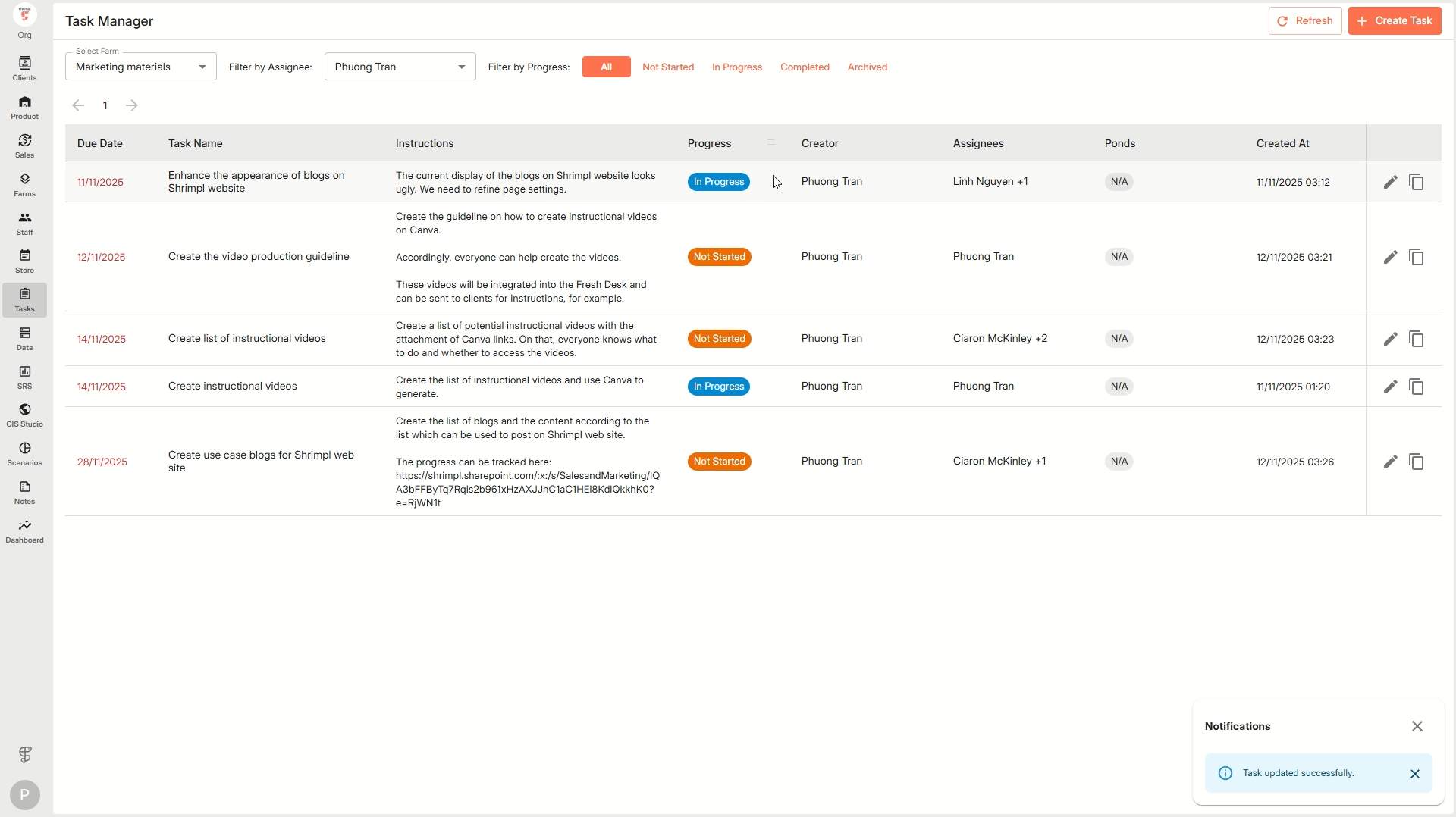
Step 1: Click Tasks from the left-side navigation menu. The Tasks section opens, showing the main table interface.
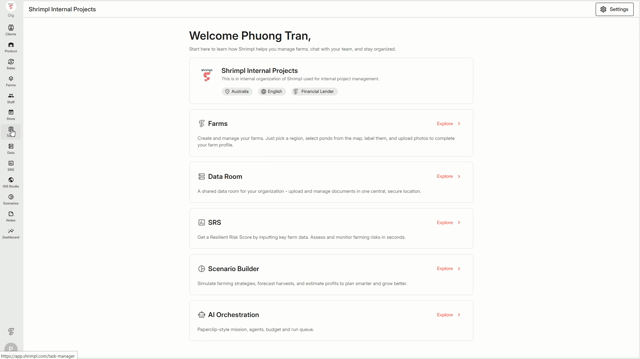
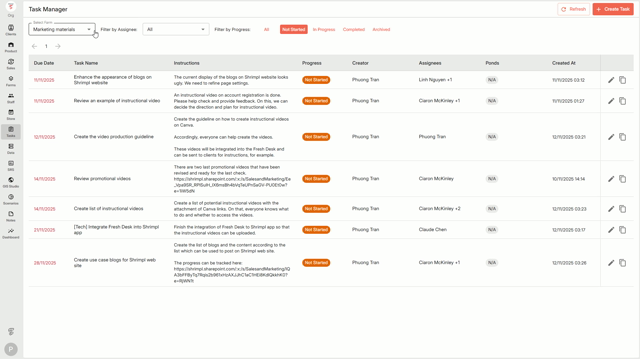
Step 2: Use the table to view all tasks at a glance. Each row represents a task with columns for details like Task Name, Status, Progress, and the person assigned.
Step 3: Use the search bar or the filters above the table to quickly narrow down tasks by name or criteria like status and due date.
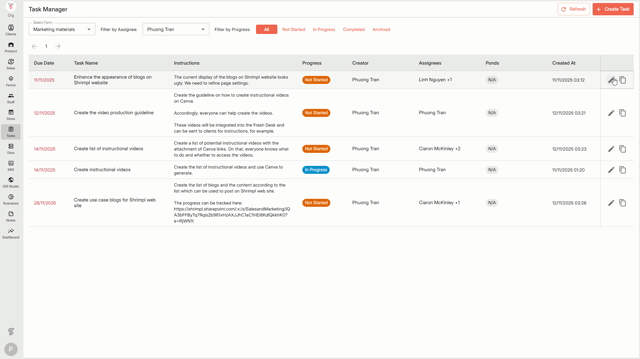
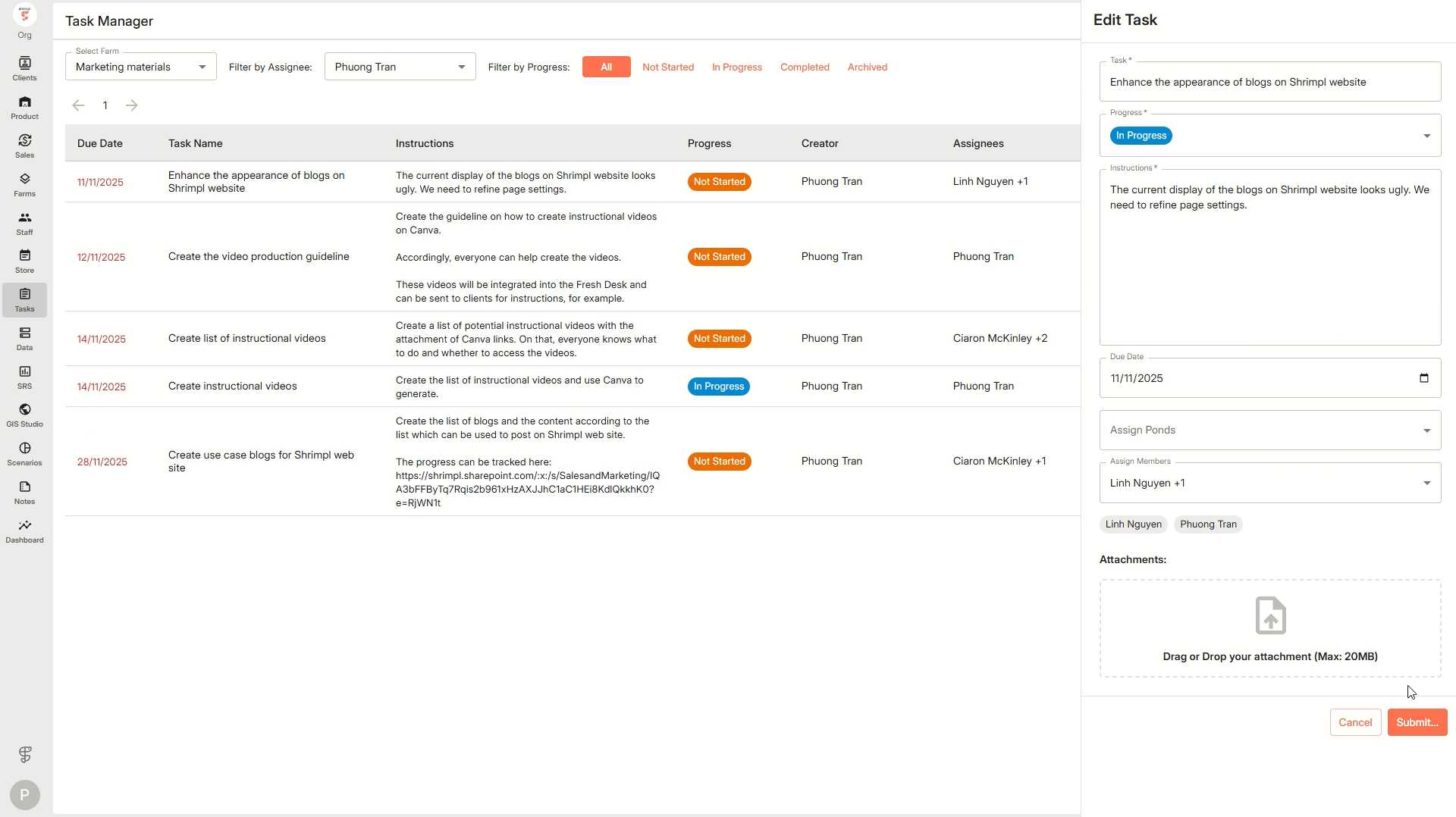
Step 4: To update a task, click directly on its row in the table. This opens a detailed side panel with all the task’s info and editing options.
Step 5: In the side panel, you’ll find direct actions to update progress, mark steps as complete, or change the task status using dropdown menus and toggles. Orange action buttons highlight important actions you can take.
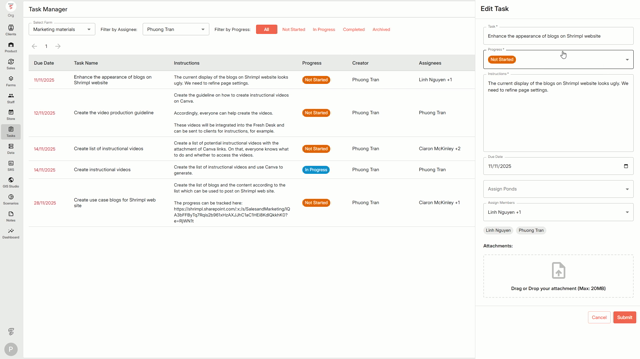
Step 6: When finished with your edits, press the Submit button at the bottom of the panel. Your changes instantly apply, and everyone assigned to the task sees updates right away.
Step 7: To create a new task, click the bright red Add New button above the table. This instantly opens a blank task form on the side panel. Fill in task details, assign someone, set a due date, and click Save to add it to the list.
Practical Tips:
-
Use filters to stay focused on high-priority or urgent tasks.
-
The table interface makes it easy to spot tasks that need updates.
-
Colored action buttons stand out so you won’t miss critical next steps.
With these steps, keeping your team’s work organized in the Shrimpl Task Manager is simple and efficient.